Bug Tracker

Jordan

  • Testing Tickets - jordan
  • NeedInfo Tickets - jordan
  • Opened Tickets - jordan

Work4Cad

  • Testing Tickets - Work4Cad
  • Opened Tickets - Work4Cad
  • Owner - Admin Semsales

2D

  • New V30
  • New V2025
  • New V2026

2DV

  • New V30
  • New V2025
  • New V2026

3D

  • New V30
  • New V2025
  • New V2026

List

  • New V30
  • New V2025
  • New V2026

Ci-Start

  • New V30
  • New V2025
  • New V2026

CWSetup

  • New V30
  • New V2025
  • New V2026

OptiPanel

  • New V30
  • New V2025
  • New V2026

Lamel

  • New V30
  • New V2025
  • New V2026

Statistics

  • Created tickets from last week
  • Created tickets from last week

Knowledge Base

  • Open Knowledge Base
  • Cadwork Installation Manual

System Requirements

  • System Requirements
    • System Requirements V2026
    • System Requirements V2025
    • System Requirements V30 SP2024

Installation

  • Installation
    • Install V2025
      • Type of install V2025
      • Target directories V2025
    • Install V30 SP2024
      • Type of install V30 SP2024
      • Target directories V30 SP2024

Cadwork Start

  • Cadwork Start
    • Support
    • Licence download
    • Live Update
    • Repair / New installation
    • Weblogin Licence

cadwork installation for IT

  • cadwork installation for IT
    • Download install packages
    • Script install
      • Script install V2025
      • Script install V30 SP2024
    • Silent install
      • Silent install V2025
      • Silent install V30 SP2024
    • Command line cwsetup
    • Network Licence
    • Antivirus
    • Tips and Tricks

FAQ

  • FAQ

Cadwork Homepage

Accueil Cadwork-04 FR

  • Ouvrir Cadwork-04

Smash FR

  • Transfert de fichiers

Clés USB clients FR

  • Clés pour les clients

Clés USB étudiants FR

  • Clés pour les étudiants
    • Achat d'une licence
    • Renouvellement licence
    • Clé de remplacement
    • Clé défectueuse

Clés USB profs

  • Clés pour les enseignants
    • Commande licence Enseignant
    • Renouvellement Licence Enseignant

Homepage DE

  • Cadwork-04 öffnen

Smash DE

  • Übermitteln von Dateien

USB-Sticks Kunden DE

  • USB-Sticks für Kunden

USB-Sticks Studenten DE

  • USB-Sticks für Studenten
    • Studentenlizenz
    • Studentenlizenz erneuern
    • USB-Stick ersetzen
    • Defekter USB-Stick

USB-Sticks Lehrer DE

  • USB-Sticks für Lehrer
    • Lehrer-Lizenz bestellen
    • Lehrer-Lizenz erneuern

Quick Parts FR

Bonjour,

Il faudrait svp effectuer les manipulations suivantes :

  1. Ouvrir le cadwork start
    • Il est parfois nécessaire de l'ouvrir en tant qu'Administrateur (clic droit sur cadwork start → Exécuter en tant qu'Administrateur).
  2. Aller dans l'onglet Support (en haut)
    Vérifier vos informations clients (et compléter si nécessaire).
    • Votre numéro client doit être renseigné sous le format comme décrit dans notre FAQ du manuel d'installation.
    • Vous pourrez trouver votre numéro client dans l'objet d'un e-mail reçu de notre part ou dans une facture ou courrier officiel.
    • Vous recevez le support de CH - Cadwork-04.
  3. Appuyer sur OK. Si vous ne pouvez pas cliquer sur OK, merci de compléter tous les champs.
  4. Dans la rubrique Setup →Licence
    • Il faut contrôler que ce soit le bon type de licence qui soit sélectionnée (clé USB / Processor SN ID / Computer ID / Network licence).
    • Dans le cas d'une clé USB, assurez-vous que la lettre en majuscule à côté de « USB Memory » soit la même que dans l'explorateur Windows.
      windows-explorer-key-id-vs-ci-start-fr.png
    • Si ce n'est pas le cas, il faut la changer à l'aide du menu déroulant (petit triangle sur la droite de l'image ci-dessus).
  5. Appuyer sur Appliquer
  6. Appuyer sur Télécharger

En cas de besoin voilà une vidéo explicative en fonction du type de licence que vous utilisez :

  • Licence sur clé USB :
    Vidéo clé USB
  • Licence sur Computer ID / Processor SN ID :
    Vidéo Computer ID

Si le problème persiste, je vous prie de contacter la hotline par téléphone. Nous prendrons la main sur votre ordinateur afin de résoudre le problème.

  • Suisse : +41 21 943 00 42
  • France : +33 3 63 21 99 22
  • Belgique : +32 2 320 55 12

Nos heures d'ouvertures sont :
Lundi - Jeudi : 8h00 - 12h00 et 13h30 - 17h00
Vendredi : 8h00 - 12h00 et 13h30 - 16h30

Quick Parts DE

Guten Tag,

Bitte führen Sie die folgenden Schritte aus:

  1. Öffnen Sie das cadwork start
    • Es kann erforderlich sein, das Programm als Administrator zu öffnen (Rechtsklick auf cadwork start → Als Administrator ausführen).
  2. Wechseln Sie in den Reiter Support (oben)

    Überprüfen Sie Ihre Kundendaten (und ergänzen Sie diese bei Bedarf).
    • Ihre Kundennummer muss im Format angegeben werden, wie es in unserer FAQ des Installationshandbuchs beschrieben ist.
    • Ihre Kundennummer finden Sie im Betreff einer von uns erhaltenen E-Mail oder auf einer Rechnung bzw. einem offiziellen Schreiben.
    • Sie erhalten Support von CH - Cadwork-04.
  3. Klicken Sie auf OK. Falls Sie nicht auf OK klicken können, füllen Sie bitte alle Felder aus.
  4. Im Bereich Setup → Licence
    • Bitte überprüfen Sie, ob der korrekte Lizenztyp ausgewählt ist (USB-Schlüssel / Processor SN ID / Computer ID / Network licence).
    • Bei einem USB-Schlüssel stellen Sie sicher, dass der Grossbuchstabe neben « USB Memory » mit demjenigen im Windows-Explorer übereinstimmt.
      windows-explorer-key-id-vs-ci-start-de.png
    • Ist dies nicht der Fall, muss dieser über das Dropdown-Menü geändert werden (kleines Dreieck rechts im obigen Bild).
  5. Klicken Sie auf Übernehmen
  6. Klicken Sie auf Download

Sollte das Problem weiterhin bestehen, bitten wir Sie, die Hotline telefonisch zu kontaktieren. Wir werden uns per Fernzugriff auf Ihren Computer aufschalten, um das Problem zu lösen.

  • Schweiz: +41 21 943 00 46
  • Belgien: +32 2 320 55 11 → 3 für Deutsch → 3 für den Support
  • Italien: +39 085 909 6910 → 2 für Deutsch → 3 für den Support

Büro Zeiten
Montag bis Donnerstag: 8:00 - 12:00 und 13:30 - 17:00 Uhr
Freitag: 8:00 - 12:00 und 13:30 - 16:30 Uhr

Quick Parts IT

Buongiorno,

Si prega gentilmente di eseguire le seguenti operazioni:

  1. Aprire cadwork start
    • In alcuni casi è necessario aprirlo come Amministratore (clic destro su cadwork start → Esegui come amministratore).
  2. Andare nella scheda Support (in alto)
    Verificare i dati cliente (e completarli se necessario).
    • Il numero cliente deve essere inserito nel formato descritto nella nostra FAQ del manuale di installazione.
    • Il numero cliente si trova nell'oggetto di un'e-mail ricevuta da parte nostra oppure su una fattura o comunicazione ufficiale.
    • Il supporto è fornito da CH - Cadwork-04.
  3. Premere OK. Se non è possibile fare clic su OK, si prega di completare tutte le informazioni.
  4. Nella sezione Setup → Licence
    • Verificare che sia selezionato il tipo di licenza corretto (chiavetta USB / Processor SN ID / Computer ID / Network licence).
    • In caso di chiavetta USB, verificare che la lettera maiuscola accanto a « USB Memory » corrisponda a quella visualizzata in Windows Explorer.
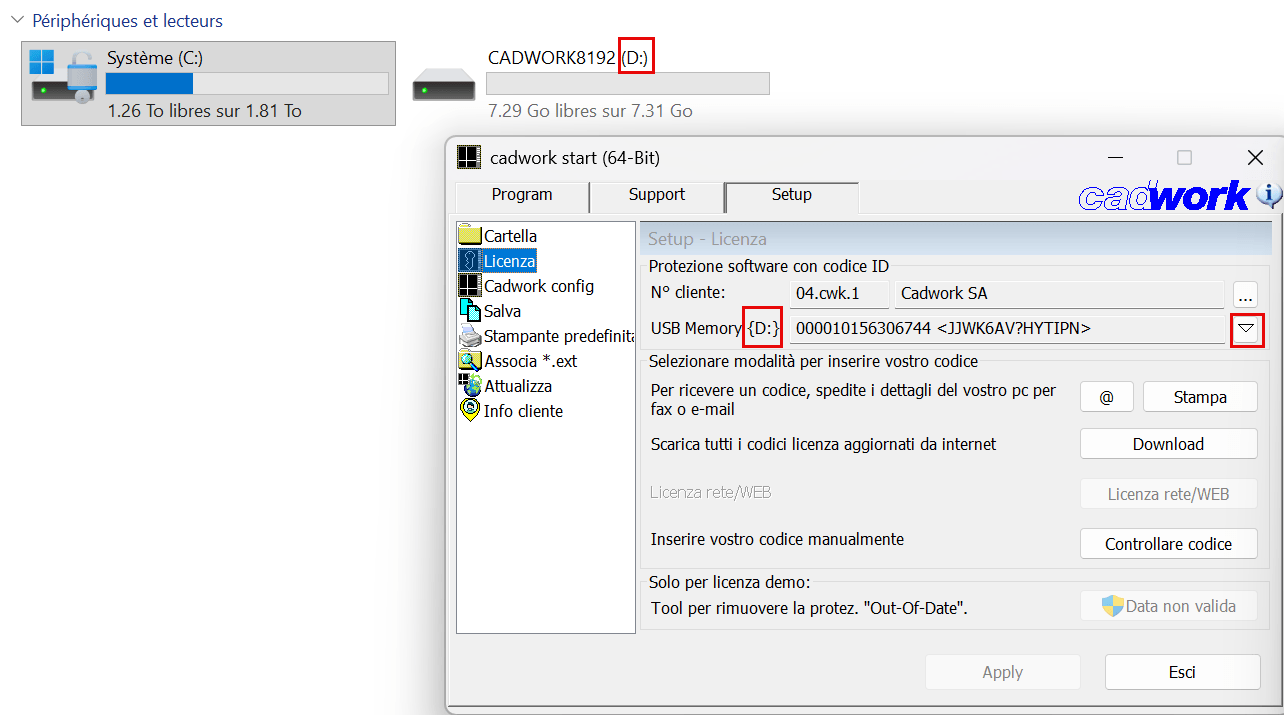
      windows-explorer-key-id-vs-ci-start-it.png
    • In caso contrario, modificarla utilizzando il menu a discesa (piccolo triangolo a destra dell'immagine sopra).
  5. Premere Applicare
  6. Premere Download

In caso di necessità, di seguito è disponibile un video esplicativo in base al tipo di licenza utilizzata:

  • Licenza su chiavetta USB:
    Video chiavetta USB
  • Licenza su Computer ID / Processor SN ID:
    Video Computer ID

Se il problema persiste, si prega di contattare la hotline telefonicamente. Ci collegheremo al vostro computer per risolvere il problema.

  • Svizzera: +41 21 943 00 40
  • Italia: +39 085 909 6910 → 1 per l'italiano

I nostri orari di apertura sono:
Lunedì - Giovedì: 8h00 - 12h00 e 13h30 - 17h00
Venerdì: 8h00 - 12h00 e 13h30 - 16h30

Quick Parts NL

Goeiedag,

Gelieve de volgende handelingen uit te voeren:

  1. Open cadwork start
    • Soms is het nodig dit als Administrator te openen (rechtsklik op cadwork start → Als administrator uitvoeren).
  2. Ga naar het tabblad Ondersteuning (bovenaan)
    Controleer uw klantgegevens (en vul deze indien nodig aan).
    • Uw klantnummer moet worden ingevuld in het formaat zoals beschreven in onze FAQ van de installatiehandleiding.
    • U kunt uw klantnummer terugvinden in het onderwerp van een e-mail die u van ons heeft ontvangen of op een factuur of officieel schrijven.
    • U ontvangt ondersteuning van CH - Cadwork-04.
  3. Klik op OK. Als u niet op OK kunt klikken, gelieve alle velden in te vullen.
  4. In de rubriek Setup → Licentie
    • Controleer of het juiste licentietype is geselecteerd (USB-Memory ID / Processor SN ID / Computer ID / Network ID).
    • In het geval van een USB-sleutel, zorg ervoor dat de hoofdletter naast "USB Memory ID" dezelfde is als in de Windows Verkenner.
      windows-explorer-key-id-vs-ci-start-nl.png
    • Indien dit niet het geval is, dient u deze te wijzigen via het keuzemenu (klein driehoekje rechts van de afbeelding hierboven).
  5. Klik op Toepassen
  6. Klik op Downloaden

Indien nodig vindt u hier een verklarende video afhankelijk van het type licentie dat u gebruikt:

  • Licentie op USB-sleutel:
    USB-sleutel video
  • Licentie op Computer ID / Processor SN ID:
    Computer ID video

Indien het probleem aanhoudt, verzoeken wij u contact op te nemen met de hotline per telefoon. Wij nemen dan de controle over uw computer om het probleem op te lossen.

  • België : +32 2 320 55 13

Onze openingsuren zijn :
Maandag - Donderdag : 8u00 - 12u00 en 13u30 - 17u00
Vrijdag : 8u00 - 12u00 en 13u30 - 16u30

Quick Parts EN

Hello,

Please perform the following steps:

  1. Open cadwork start
    • It is sometimes necessary to open it as an Administrator (right-click on cadwork start → Run as Administrator).
  2. Go to the Support tab (at the top)
    Check your customer information (and complete if necessary).
    • Your customer number must be entered in the format described in our Installation Manual FAQ.
    • You can find your customer number in the subject of an email received from us or in an invoice or official letter.
    • You receive support from CH - Cadwork-04.
  3. Press OK. If you cannot click OK, please complete all fields.
  4. In the Setup → Licence section
    • You need to check that the correct type of licence is selected (USB key / Processor SN ID / Computer ID / Network licence).
    • In the case of a USB key, make sure that the uppercase letter next to "USB Memory" is the same as in Windows Explorer.
      windows-explorer-key-id-vs-ci-start-en.png
    • If this is not the case, you need to change it using the drop-down menu (small triangle on the right of the image above).
  5. Press Apply
  6. Press Download

If needed, here is an explanatory video depending on the type of licence you are using:

  • USB key licence:
    USB key video
  • Licence on Computer ID / Processor SN ID :
    Computer ID video

If the problem persists, please contact the hotline by phone. We will take control of your computer to resolve the issue.

  • Switzerland: +41 21 943 00 40
  • France: +33 3 63 21 99 20
  • Belgium: +32 2 320 55 11
  • Italy: +39 085 909 6910

Our opening hours are :
Monday - Thursday : 8:00 AM - 12:00 PM and 1:30 PM - 5:00 PM
Friday : 8:00 AM - 12:00 PM and 1:30 PM - 4:30 PM